🔐 What Is a Lock Screen?
The lock screen is the first screen that appears when you wake up or turn on your phone before unlocking it.
It protects your data and also shows important information at a glance — without opening your phone.
📋 Lock Screen Information Usually Includes:
- Time & Date – Always shown on top.
- Notifications – Messages, calls, app alerts, etc.
- Battery Status – Charging percentage or battery level.
- Weather Info – Current temperature and conditions (optional).
- Music Controls – If you’re playing songs, you can pause/play directly.
- Owner Info / Message – You can add your name or emergency contact.
- Wallpaper or Live Animation – The background image or effect you see.
⚙️ Lock Screen Security Options
You can protect your lock screen using:
- 🔢 PIN – A 4 or 6-digit number
- 🧩 Pattern – A swipe design you draw
- 🔒 Password – Combination of letters, numbers, symbols
- 👁️ Face Unlock – Uses your face to unlock
- 🖐️ Fingerprint Unlock – Uses your fingerprint
🎨 Lock Screen Customization
You can change how your lock screen looks and what it shows:
- Change wallpaper or add a slideshow
- Add widgets (clock style, weather, calendar)
- Hide or show notification details
- Add “owner info” like “If found, call +91…”
- Use third-party apps (like KLCK, Zedge, Always On AMOLED)
🔮 Aesthetic & Minimal
- Gradient backgrounds (sunset tones, pastel colors, galaxy fade)
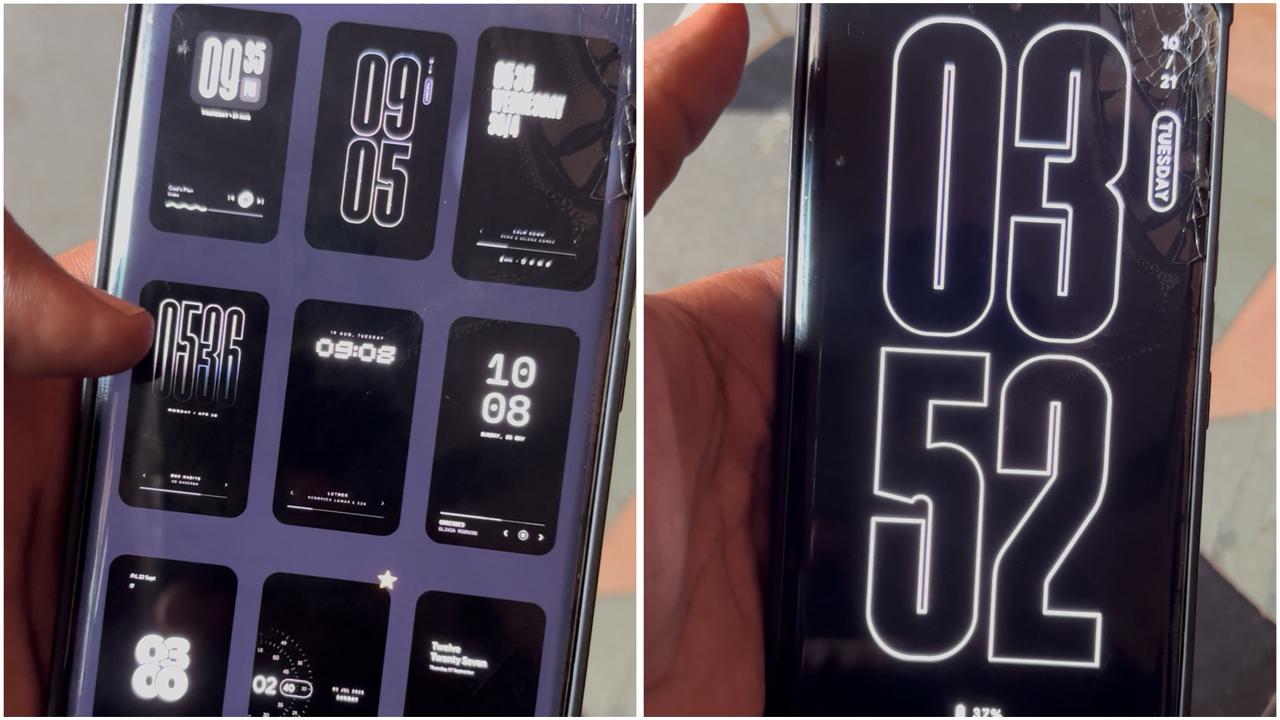
- Date & time in center with clean font (try apps like Nothing Launcher or KWGT)
- Black background + white neon clock – battery friendly and classy
🌌 Nature & Space Themes
- Night sky with stars slowly moving
- Forest with fog animation
- Earth from space (live wallpaper) – looks stunning on AMOLED screens
✨ Festival & Celebration
- Deepavali theme – diyas, crackers, glowing lights animation
- New Year countdown lock screen
- Birthday sparkle wallpapers with your name
🕶️ Cool & Futuristic
- Cyberpunk neon city wallpaper
- Glowing fingerprint scanner animation
- Matrix-style code rain background
❤️ Personalized Ideas
- Your name or initials in bold typography
- Your favourite quote or motivation line on top
- Photo collage of family or memories with blur effect
📱 Best Apps to Create or Customize Lock Screens
- 🔹 Zedge – HD & live wallpapers
- 🔹 Walli – Artistic & unique designs
- 🔹 Lockscreen Club – Custom themes
- 🔹 KLCK Kustom Lock Screen Maker – build your own layout
- 🔹 Always on AMOLED – for stylish time & notification displays
✅ What it does
- The app displays a live music visualizer around the edges of your screen while you’re listening to music from your favourite apps.
- It also lets you enable an Always-On Display (AOD) screen saver with clock styles, animation and customisation (so your lock/standby screen looks more interesting) even when the screen is off.
- You can customise many aspects: colours of the visualiser, designs/packs, choosing which music apps to respond to, selecting AOD backgrounds, etc.
🎛 Key features
- Supports major music apps: So whether you stream or play offline, it should pick up the music source.
- Edge lighting / screen-edge visual effects: The visual effects can wrap around the screen edges — good for phones with curved/edge displays.
- Customisable AOD themes: Such as “HyperOS AOD”, “Pixel style AOD”, “Solar System Clock AOD”, etc.
- Colour palette options: You can pick colours manually, or sometimes the app applies colours based on the album art of the music you’re playing.
- Burn-in protection features: For AMOLED screens, AOD screens can risk burn-in if static for too long — the app claims to have shifting/pixel movement to mitigate that.
🔧 How to use / set up
- Install the app from Google Play: It’s listed as “Muviz Edge: AOD & Edge Lights” by Sparkine Labs.
- Grant necessary permissions (media/audio access, overlay permission, etc) so it can display over lock screen/standby and capture music playback.
- Choose your music sources: select which apps should trigger the visualiser.
- Choose an AOD theme if you like — pick a clock style, animation style, background, etc.
- customise visualiser settings: colour palette, placement (edges, full screen), behaviour (when to hide, when to show).
- If you have an AMOLED/edge display, enable the burn-in protection options (pixel shifting, hiding visuals during certain apps/games) as available.
- Test with music: Play a track and see how visuals respond around your screen edges; adjust speed/brightness as per your preference.
Click on APP LINK for APP
Leave a Reply